Everyone loves "free," especially those in education where many teachers do not have the financial backing to obtain necessary resources. In looking at some of the websites listed on the AASL's Best Websites for Teaching and Learning, I am so upset that I did not know about some of these prior to now. Some of my favorites:
Google Keep: As I am part of a Google-based county, I find myself drawn towards Google things, which is why I initially looked into Google Keep. As someone who is Type A and hyper organized, I have notes and lists EVERYWHERE. When I am doing research or working on an extended assignment, I tend to have numerous working documents going, where I jot down notes and ideas. I have to-do lists for both my personal and professional life, both in physical form and electronic. I have an on-going note on my phone with teaching ideas. The only problem with this is that the electronic notes I gather are spread across three computers and my phone, which makes organizing things difficult.
Enter Google Keep. Google Keep is a syncing notepad that connects to Google Drive. As many teachers and librarians are like me and do not limit their work-related thinking and planning to the hours in which they are in the school setting, Google Keep is perfect because it serves as a place to corral all your notes and ideas in one place, regardless of when and where you have them.
CommonLit: I was introduced to CommonLit by our school reading specialist last year and I love it!!! CommonLit is a reading resource with a library of free, leveled texts. They run the gamut in terms of genre and accessibility, and you are able to filter the texts based on genre, grade level, reading level, themes, literary devices, SOLs/CSSs, etc.
As an English teacher, I enjoy using CommonLit to find paired passages for my students in order to prepare them for the Reading SOL, but I think you could use it is a variety of ways as a librarian. If the history classes are studying the Holocaust, you could cull through CommonLit to find poetry and short passages that would pair with that topic. You could filter out texts that work with a school-wide event (anti-bullying, suicide awareness, etc.) and have those texts available on the library or school website. It says that the texts on CommonLit are geared towards 5th-12th grades, but I think you may be able to find ones that are suitable to younger students as well.
Poets.org: I really like the content Poets.org has to offer. There are literally thousands of poems listed on the website, ranging from well-known poems to more obscure, from all time periods, and stretching across every possible theme imaginable. It is super user-friendly too, allowing the poems to be sorted by theme/topic, author, time period, etc.
Poetry tends to be something that students either love or loathe, and I have found that with English / Language Arts, poetry ends up being its own separate unit that is thrown in almost as an afterthought. In utilizing Poets.org though, teachers / librarians could offer a sampling of poetry to students daily through signing up for a poem a day, or linking poetry to what it being taught in the classes with the thematic sort. Librarians could aid in doing paired passages with the poems by having students select a theme from a book they are reading, either for class or as a choice read, and then finding a poem that has the same theme. As Poets.org allows for more choice, it may allow students who are more resistant to poetry to enjoy it more, especially since there are so many poems and poets included that are not typically taught in school. It could also be really fun to use Poets.org to help generate poems for a Poetry Slam in the library.
In looking at the library-related blogs that were offered as ones to follow, I was really drawn to both The Daring Librarian and Renovated Learning. Both offer a nice taste of the traditional library ideas (book selections, summer reading, etc.), while also incorporating what it means to be a librarian in the 21st century. Both bloggers utilized fun, conversational tones, which helped me to want to continue reading their posts. One thing that I really liked about Renovated Learning is that you can subscribe to her blog. Since I use my late night nursing sessions with my daughter to read the blogs that I subscribe to, I immediately added her to my list of go-tos because I would love to learn more about how she incorporated Makerspaces into her existing library.
And a shameless plug because she was not listed on the librarian blog list, I LOVE Kate Olson, the "professional reader" behind Loud Library Lady. I first started following her on Instagram because her book reviews were always spot on, but the more I read about her being a librarian for MULTIPLE schools at once, the more intrigued I became. Being in a county where each school has one, if not two, librarians of their own, I was baffled by how Ms. Olson managed jumping back and forth between schools and grade levels. Her insights and lessons are great, and I feel that as a budding librarian, I could learn a lot from her. :)
Showing posts with label LIBS 602. Show all posts
Showing posts with label LIBS 602. Show all posts
Monday, July 24, 2017

Sunday, July 23, 2017
Summer Institute Reflection
Thinking about everything I learned in the two days at the Summer Institute makes my brain hurt. There was a LOT of information provided in such a short period of time that it was almost overwhelming, but I came away with so many great ideas that it is definitely worth the brain ache.
Initially, I was a little discouraged by the idea of being a Maker Librarian. While I loved the idea and thought it would be something fantastic to have in the library, I was worried about the financial aspect of it. Ozobots, Spheros, and Makey Makey Kits all sound really great, but they also come with a significant price tag. If I were teaching in a school that did not have the budget to allow for these technologies, though, how could I still implement STEM technologies that would benefit my students? That was something I had been grappling with the entire semester as I learned about these technologies and different tools...they were great in theory, but how would they work realistically?
While I focused my nine questions prior to the Institute on three of the seemingly more expensive technologies, during the Technology/Maker Exploration on the first day of the Institute, I found myself more drawn to the stations that used everyday objects and NOT the ones with the higher price tags. As I built a boat out of duct tape (which floated!), folded paper to create an origami bookmark, and created a paper circuit, I realized that the expensive, flashy technology was still really cool, but you could still have a pretty awesome maker station in your library using less expensive items that are available from craft and home improvement stores.

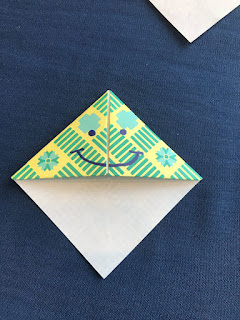
Although I did not attend IdaMae Craddock's session (I wish we had more session time because there were SO many I wanted to attend, but could not get to all of them), from classmates, I got a quick recap in that she did not have a lot of money when she began curating materials for her maker library. Instead, she used things that she found around her house or that she could get for cheap (or free!) from area businesses. This is something I read further on later (yay, Pinterest!) where a middle school librarian created three maker stations for $450. $450 compared to the thousands I was originally envisioning prior to the Institute is WAY more achievable.
I know the assignment was to reflect on the nine questions we initially came to the Institute with, and with that, I failed. I cannot answer how waterproof the Spheros are or give specific information regarding the Google Expeditions, but I can brainstorm really create ideas as to how you can cheaply and efficiently use household materials to aid in creativity and fine motor development for students of all ages.
Plus, I also learned valuable information (that has nothing to do with maker stations), such as how to incorporate fandoms and fanfic into the library; building connections and relationships with public libraries, colleges, and businesses; OERs; and how to deal with censorship. Overall, the Institute was SO worthwhile!
Initially, I was a little discouraged by the idea of being a Maker Librarian. While I loved the idea and thought it would be something fantastic to have in the library, I was worried about the financial aspect of it. Ozobots, Spheros, and Makey Makey Kits all sound really great, but they also come with a significant price tag. If I were teaching in a school that did not have the budget to allow for these technologies, though, how could I still implement STEM technologies that would benefit my students? That was something I had been grappling with the entire semester as I learned about these technologies and different tools...they were great in theory, but how would they work realistically?
While I focused my nine questions prior to the Institute on three of the seemingly more expensive technologies, during the Technology/Maker Exploration on the first day of the Institute, I found myself more drawn to the stations that used everyday objects and NOT the ones with the higher price tags. As I built a boat out of duct tape (which floated!), folded paper to create an origami bookmark, and created a paper circuit, I realized that the expensive, flashy technology was still really cool, but you could still have a pretty awesome maker station in your library using less expensive items that are available from craft and home improvement stores.


Although I did not attend IdaMae Craddock's session (I wish we had more session time because there were SO many I wanted to attend, but could not get to all of them), from classmates, I got a quick recap in that she did not have a lot of money when she began curating materials for her maker library. Instead, she used things that she found around her house or that she could get for cheap (or free!) from area businesses. This is something I read further on later (yay, Pinterest!) where a middle school librarian created three maker stations for $450. $450 compared to the thousands I was originally envisioning prior to the Institute is WAY more achievable.
I know the assignment was to reflect on the nine questions we initially came to the Institute with, and with that, I failed. I cannot answer how waterproof the Spheros are or give specific information regarding the Google Expeditions, but I can brainstorm really create ideas as to how you can cheaply and efficiently use household materials to aid in creativity and fine motor development for students of all ages.
Plus, I also learned valuable information (that has nothing to do with maker stations), such as how to incorporate fandoms and fanfic into the library; building connections and relationships with public libraries, colleges, and businesses; OERs; and how to deal with censorship. Overall, the Institute was SO worthwhile!
Wednesday, July 12, 2017
QR Codes & Layered Reality
QR Codes: With so many
students having access to a camera, be it on their smartphones, tablets, or Chromebooks,
QR Codes have become increasingly popular in the educational setting. Simply
scanning the small, square image allows students access to web-based text,
maps, videos, or other useful information and tools. Two ways in which I feel
QR Codes could be used in the library are with promotional materials and book
connections.
1. Promotional Materials: Bookmarks,
fliers, and posters are just a few of the places librarians can place QR codes.
The codes can link to the library website, program calendar, electronic
databases, or other important resources.
2. Book
Connections: In placing QR Codes on book covers or on posters
on book displays, students could have access to book summaries, author
interviews, and book trailers. Librarians could also use QR Codes to link books
with read-alikes, such as, “If you liked ______, then check out these other
books” as a way to promote other books in the library.
I created the QR Code below for the library website we
were asked to create.

Technology/Maker Exploration: The following nine
technologies will be addressed further at the Summer Institute next week, which
is definitely a good thing because I know very little about them. In doing some
quick research to get a better understanding of the technologies, I have realized
that every one of these technologies, while different, would be a great way to
introduce students to programming in an educational setting.
1. Ozobots are little toy robots that integrates the
physical and digital worlds.
2. Spheros are small spherical robots that roll
around through the use of Bluetooth, can spin, flip, and change color.
a. While
I understand Spheros are able to be used through Bluetooth on a mobile device, how
do they actually work, especially since much of the research I did showed them
being used by preschoolers and kindergarteners?
b. What
happens when the Sphero gets wet, either from water or paint?
c. How
difficult are they to use, especially in regards to younger children?
3. Makey-Makey is a small invention that allows the
user to turn everyday objects into a touchpad that interacts with a computer
program.
4. Little Bits Kits teach coding principles as
students build and program games.
5. Google Expeditions is a virtual-reality teaching
tool that allows educators to take their classes on virtual field trips. (How
had I never heard of this before???)
a. What
is needed to use Google Expeditions, beyond a computer?
b. Are
there pre-set expeditions, or do teachers need to create their own?
c. How
can educators ensure that students stay in the specified “location” without
straying elsewhere?
6. Paper Circuits are working circuits on paper
that are made with normal, everyday objects. Students can utilize paper
circuits to help enhance their book projects. To an elementary-aged student, I
think they would find it amazing that simple household items, when combined,
can create a working light circuit to add pizzazz to their projects.
7. Aurasma allows users to create or view augmented
reality experiences that blend the physical and digital using a mobile device's
camera.
a. How
does Aurasma benefit student learning?
b. What
are some of the benefits of using Aurasma over other augmented reality
experience apps?
c. How
can Aurasma engage students?
8. Green Screens, just like in Hollywood, allow
students to be part of their assignment.
9. Creating memes with the photo editing app Aviary
could allow students to create memes in response to current events.
Tuesday, July 4, 2017
3-D Printing, Programming, Paper Circuits, & Computational Thinking
The incorporation of different technologies in school
libraries has been picking up a lot of interest among schools and communities
in recent years, as they allow students and teachers/staff to create, invent,
and learn. Below are brief explanations of how a few different technology-based
tools can be utilized in libraries:
3-D Printing:
3-D Printing allows students to design, enhance, or invent something new
instead of simply searching the internet and printing out an image. In fact, I
found this infographic which provides ten specific ways 3-D Printing could
possibly be used in an educational setting.
 |
| TeachThought. (2017). How 3D Printing Works [Image]. Retrieved from http://www.teachthought.com/the-future-of-learning/technology/10-ways-3d-printing-can-be-used-in-education/. CC0. |
Programming (aka Coding)
& Computational Thinking: With a push for more STEM activities in
schools, programming is gaining in popularity. An article from the School
Library Journal states that “coding is both a hands-on maker opportunity and a
perfect fit with new media literacy standards” (Sansing, 2015). For schools
with robotics classes and clubs, or even just students who are interested in
programming, it allows students to demonstrate their creativity and critical
thinking skills using technology.
Something my husband mentioned in regards to
computational thinking, which was also discussed in a September 2016 article in
the School Library Journal, is
Project Bloks. Project Bloks is a tangible programming platform that enables
kids to develop computational thinking from a young age through coding
experiences that are playful, tactile, and collaborative. This would be a
really good way to introduce preschool and kindergarten students to
programming.
After playing around with programming, which was way
easier than I initially thought it would be, here are some things I
brainstormed for how a librarian could utilize programming for the school
library:
1. You could write a program to select one book
from the school’s library to highlight as a randomly selected “Book of the
Month” or “Book of the Week,” and have the information about that selected book
show up on the library and/or school webpage.
2. You could write a program that allows
students/teachers to check out/reserve books through the library website,
similar to what is done at public libraries.
3. You could create a website for the library, if
there is not one already, with easy access to databases and other helpful
links.
Paper Circuits:
Again, with the push for STEM programs to help spark curiosity through hands-on
experiments, students could utilize paper circuits to help enhance their book
projects. To an elementary-aged student, I think they would find it amazing
that simple household items, when combined, can create a working light circuit
to add pizzazz to their projects.
References:
Sansing, C. (2015). Coding Skills Empower Us All. School
Library Journal. Retrieved from http://www.slj.com/2015/05/technology/coding-skills-empower-us-all-the-maker-issue/.
Monday, June 26, 2017
School Library Websites
Website tools, such as Wix and Weebly, allow school
libraries to have a web presence and for students, parents, and other educators
to utilize the information and services your library offers. Many schools have
their own website and include subpages for the school library, but in doing a
Google search of “school library weebly sites,” I found some examples of
independent school library website that did an excellent job of showcasing that
particular library really well.
1. Seekonk High School Library
This school library website was very user-friendly, with many important pieces of information on the home page, such as hours, the librarians’ contact information, and the library calendar. For teachers, having the library calendar so easily accessible is truly a helpful thing, as it would be very easy to check if the library is closed for SOL testing or being used for something that would make class visits impossible.
By clicking on the “Find a Book” tab, a new webpage opens and users are able to access the school’s e-catalog directly. The “Research” tab houses all research databases available to the school, which would allow students to use the databases at home in order to complete assignments.
There were also links to helpful sites, such as SAT and ACT practice tests and information about the AP test, for students, and pair-passage suggestions for teachers, making the library website helpful for anyone who might venture there.
This school library website was very user-friendly, with many important pieces of information on the home page, such as hours, the librarians’ contact information, and the library calendar. For teachers, having the library calendar so easily accessible is truly a helpful thing, as it would be very easy to check if the library is closed for SOL testing or being used for something that would make class visits impossible.
By clicking on the “Find a Book” tab, a new webpage opens and users are able to access the school’s e-catalog directly. The “Research” tab houses all research databases available to the school, which would allow students to use the databases at home in order to complete assignments.
There were also links to helpful sites, such as SAT and ACT practice tests and information about the AP test, for students, and pair-passage suggestions for teachers, making the library website helpful for anyone who might venture there.
This school library website
utilized many interactive web tools to allow the user to experience what their
school library has to offer. The website highlighted student achievements, such
as a third place finish for the Battle of the Book team, as well as world news
from the fifth graders’ reports.
I really liked that there was a
focus on learning, which is highlighted under the “Library Class” tab, where
users can access the objectives for each grade level (Kindergarten through 5th
grade), books they will read during the school year, and additional activities.
Some of the web tools utilized in the SIS Elementary
website would be great to use in my own library website. I liked how there were
integrated slideshows and embedded videos, which show the library in “action.”
I also really liked that there were infographics that showed the importance of
reading for 20 minutes each day, which is something I think all parents and
guardians would benefit from seeing.
Tuesday, June 20, 2017
Presentation Tools
When doing presentations, many people rely on PowerPoint
or GoogleSlides, but in exploring the presentation tools in this week’s
sandbox, I realized there were numerous other options out there that would be
wonderful alternatives to those typical (and boring!) standbys.
Blendspace: Blendspace allows the user to combine all
types of digital content, as well as their own files, to create an interactive,
engaging, and multimedia presentation. Getting started with Blendspace is fairly
easy. You simply need to type in your topic and the presentation tool will
search Google, YouTube, and TES resources to help you find information you may
want to include in your presentation. You also can add your own content files
such as PDFs, Word Docs, links, images, videos, etc. Some content requires
payment, but there is still a good variety of free content available to use in
your Blendspace presentation.
Emaze: Emaze is a web-based tool, and Chrome app, that allows
users to create, save, and share presentations online. You can create a
free account and access a bunch of animated templates and design
options. The tool can give teachers the opportunity to take
their presentations beyond what a standard PowerPoint can do with
dynamic images, media, and charts and graphs. I liked that you can
connect Emaze to your Instagram and/or Facebook accounts, so with the click of a button, all
your personal photos are available to use in your presentations.
Haiku Deck: Haiku Deck is a presentation-creating app
that uses images and words to make more exciting presentations with
"decks" of slides. Users are able to choose from pre-loaded themes, Creative
Commons stock photographs, personal images, charts, graphs, and colors, and
then add text to present information slide by slide, making it a more fun
alternative to PowerPoint. In playing around on Haiku Deck, one thing I noticed
is that there is very limited filtering of the Creative Commons images, so if
you were using this in an educational setting with younger students, the
teacher would need to be very careful in monitoring keyword searches.
Wednesday, June 14, 2017
Video Creation & Editing Tools
For this week, we were asked to look at video creation
tools and then try our hand at making a short video of our own. Below are some
examples of different video tools and how they can be used in an educational
setting:
PixiClip: PixiClip allows users to record an animated whiteboard. Educators can use this tool to
provide animation to their lectures rather than solely using PowerPoint,
GoogleSlides, or Prezi, which become slightly monotonous with overuse. Students
could use this tool to create their presentations for class in a fun,
interactive way.
PowToon: PowToon is
similar to PixiClip in that it allows users to create animated videos and
presentation. Some of the features require a paid subscription, but the free
components allow you to create animated videos with a decent selection of free
layouts and graphics. PowToon does a good job of allowing the user to make
their own videos and presentations more interesting for their audience by
adding music and voice over options. I used PowToon to make a promo video about
my school’s summer reading program. I published my video to Vimeo, which is
another tool that is frequently used in educational settings (and is free!),
and you can click here to access it.
WeVideo: WeVideo is a video-creation site, and Chrome
app, that allows users to create, edit, and share video content in one place.
It is cloud-based, which means that multiple people can collaborate and work on
the same video from different locations. Fun filters and fancy fonts will allow
students to experiment with presentation style as well as putting together
information. The two downsides of WeVideo is that it is costly and privacy can
get convoluted due to the ability to share with multiple people.
Wednesday, June 7, 2017
Audio Tools in the Educational Setting
Audio, whether in the form of music collections, audiobooks,
or digital recordings, will always be something found in school libraries. The
internet and free web tools have created numerous opportunities to expand the
use of audio within the library and the classroom. Below are some examples of
different audio tools and how they can be used in an educational setting:
AudioPal: AudioPal is a free web tool that helps to make websites more interactive through the addition of audio. Librarians, and teachers, can create an audio message to include on their library (or class!) websites, which would add a personal touch for your users. If you were to highlight a certain book or collection on the library website, you could have students record book talks to include as well. AudioPal also allows unlimited AudioPal messages, so you can add weekly messages or updates about the library or classroom, such as a weekly audio newsletter to keep parents informed of what is going on in the library. An issue with AudioPal is that it runs on Adobe Flash. Google Chrome began blocking Flash in September 2016 and will only allow Flash if that is all a site supports. If cross-browser compatibility is required, than AudioPal may not be the best option. If you are reading this blog on Chrome, you will need to have Flash installed and view this through Firefox or Internet Explorer.
Blabberize: Blabberize is a free tool that allows you to
create talking images. One fun way you could use Blabberize in the library or
classroom is to have students find character from a novel and record their
favorite line(s) from the novel that would best suit them. You could also do
this with speeches for historical figures.
Podcasts: A podcast is a digital audio file that is made available for download and typically features installments for users to subscribe to. For educational purposes, podcasts can be very beneficial, as they provide digital and portable means to retrieving and disseminating information. Librarians can use podcasts to promote book talks, book reviews, reading incentive programs, and other information about the library in general.
Educators who implement TED Talks in their classrooms might enjoy utilizing TED Radio Hour, in which each podcast weaves together numerous TED Talks that follow along the same theme or concept. I teach my American Literature classes thematically, rather than chronologically, so I really like that I could use TED Radio Hour to supplement anchor texts for each thematic unit.
And because I am a major nerd, you can also listen to MuggleCast, which is a free Harry Potter podcast.
AudioPal: AudioPal is a free web tool that helps to make websites more interactive through the addition of audio. Librarians, and teachers, can create an audio message to include on their library (or class!) websites, which would add a personal touch for your users. If you were to highlight a certain book or collection on the library website, you could have students record book talks to include as well. AudioPal also allows unlimited AudioPal messages, so you can add weekly messages or updates about the library or classroom, such as a weekly audio newsletter to keep parents informed of what is going on in the library. An issue with AudioPal is that it runs on Adobe Flash. Google Chrome began blocking Flash in September 2016 and will only allow Flash if that is all a site supports. If cross-browser compatibility is required, than AudioPal may not be the best option. If you are reading this blog on Chrome, you will need to have Flash installed and view this through Firefox or Internet Explorer.
Podcasts: A podcast is a digital audio file that is made available for download and typically features installments for users to subscribe to. For educational purposes, podcasts can be very beneficial, as they provide digital and portable means to retrieving and disseminating information. Librarians can use podcasts to promote book talks, book reviews, reading incentive programs, and other information about the library in general.
Educators who implement TED Talks in their classrooms might enjoy utilizing TED Radio Hour, in which each podcast weaves together numerous TED Talks that follow along the same theme or concept. I teach my American Literature classes thematically, rather than chronologically, so I really like that I could use TED Radio Hour to supplement anchor texts for each thematic unit.
And because I am a major nerd, you can also listen to MuggleCast, which is a free Harry Potter podcast.
Voki: Voki is a great website that allows you to create
speaking avatars. A fun way librarians could use Voki is to do a “Guess Who”-type
activity where students would create a script about a book character, author,
historical figure, etc. in a first-person narrative style. Students could then
record themselves reading the information with a look-alike avatar and have
classmates guess who they are. This could be used as a fun review, and would be
more interactive than a worksheet review or lecture. The one downside I found in regards to Voki is that unless you purchase one of the upgraded packages, it is impossible to embed your avatar and audio into websites, so that was kind of disappointing.
Thursday, June 1, 2017
Infographics
My principal just held our “End of Year Successes” faculty
meeting, where she called attention to the accomplishments of each department,
so when I mentioned the infographic assignment to our school librarians, they
immediately offered to share their “success” information with me to use in for
the infographic…if I let them use it for their county library meeting this
summer. Hopefully I did not disappoint them!
I used the infographic tool Canva and chose one of their free templates
to create the infographic. Using the information provided by my school’s
librarians, I inserted relevant information into the template, adjusting the
design and layout as needed.
Canva is a fairly easy tool to use when creating your own
infographic, as they provide numerous free templates to get you started, as
well as access to their image database. It was a little overwhelming to see the
vast number of tools available for use on Canva, but after playing with each of
them, I started to feel more comfortable. When having students utilize this
tool, it will be important to provide them plenty of time to explore the
variety of tools available to them and how they can manipulate the templates to
better display their data. For instance, I opted to leave the background and
overall design of the infographic as it appeared in the template; however, I
did adjust the font and sizing, as well as some of the layout to better fit my
needs.
My only issue with Canva’s image database was that the “free”
images were all somewhat boring and the ones that caught my eye were all ones
you had to pay for. This was a little frustrating and somewhat limiting, as I
wanted the infographic to be representative of how awesome our school library
is, but I also did not want to have to pay for each and every image I used.

Tuesday, May 23, 2017
Images and Citations
When I decided to take the plunge and apply for the Library
Studies Program, I realized that unlike the last time I was in a graduate
program which was focused entirely on English for grades 6-12, this time
around, I would need to think about ALL grade levels and how I could
potentially teach lessons to enhance ANY content area. With that in mind, I
decided to focus my image search on the Dewey Decimal System, as that is
something that is frequently taught in the elementary grade levels and helps
with research in all content areas. In looking for an image that showed the
Dewey Decimal System with a creative commons license, I found this poster on TeacherTube
that I felt could be a good resource in the future because the simple and
easy-to-identify images that are associated with each category.
 |
| Appleton, M. (2011). Dewey decimal system poster [Image]. Retrieved from https://www.flickr.com/photos/appletonmaggie/5907672591. CC by SA |
Image Creation Tools
There are a variety of image creation tools that are
beneficial for instruction in the library. As teacher-librarians, we can use
these tools to enhance our curriculum, as well as the curriculum as others in
our building, and have students use the tools to increase their comprehension
of what is taught and show their creativity. Three tools that I really liked
are as follows:
Big Huge Labs: I really enjoyed playing around on Big HugeLabs, especially with creating your own motivational poster and movie poster. I
immediately started thinking about how I could use this in my current classroom
and in my future library. I thought it would be really fun for students to create
posters motivating others on the importance of reading (as I did below), citing their sources,
etc. and then to display them around the library. Students could also create
movie posters for books they have read, either independently or for class. These
tools could offer a fun way to not only display student-generated “art” in the
library (or classroom!), but also to use a bit of peer pressure in influencing
students to read.
 |
| Care, N. (2015). books-door-entrance-italy-colors-1655783 [Image]. Retrieved from https://pixabay.com/en/books-door-entrance-italy-colors-1655783. CC0 |
Foldplay: Foldplay is a more creation-based website and
students could use the Foldbook feature to create their own storybooks using
eight different pictures and one piece of paper. This tool could be used for
students to have a more hands-on activity that relates to the creation of a
book and could allow students to either become the author of their own stories
or re-create a story they love, sort of like an adaptation of fan-fiction.
Monday, May 15, 2017
Introduction: Design and Font Choices
My husband helped me to come up with the name for this blog, as he claims I tend to ramble when discussing the books I love, and because of that, "Ramblings of a Bibliophile" was born. I also wanted to ensure that the title would work even after my coursework was complete, should I choose to continue writing in a blog format.
Due to the nature of a bibliophile, I chose the bookshelf template as my background, as it relates to my current field of study, as well as my interest in books as a whole. As for my font choices, I decided upon the font type Garamond, as it is what I use in my everyday life at work (on all emails and typed documents), and is described by Garr Reynolds as "classic elegance, mature without being stuffy" in Presentation Zen Design (2014, p. 40), a description that I would love to describe myself in my personal life. By having the same font type for my post title, date of post, and post text, it allows for readability, simplicity, and continuity. However, I chose to use a different font for the blog title in order to create a more dynamic harmony and heirarchy (p. 43). To do so, I chose a font that differed from Garamond and settled upon Homemade Apple. Whereas the Garamond font is an older-style serif typeface, Homemade Apple adds diversity due to its more hand drawn, cursive script.
In trying one of the sandbox tools, I opted for the word cloud, as it is something I do not utilize frequently in the classroom. The word cloud is based on the Harry Potter series, which is my absolute favorite series and one I reference frequently as examples in my teaching. As I have used Wordle before, I wanted to try something new and opted for Word Art, which I have seen used, but I have never used it. After doing this, I want to make EVERYTHING into word art; it is so fun!!!

Due to the nature of a bibliophile, I chose the bookshelf template as my background, as it relates to my current field of study, as well as my interest in books as a whole. As for my font choices, I decided upon the font type Garamond, as it is what I use in my everyday life at work (on all emails and typed documents), and is described by Garr Reynolds as "classic elegance, mature without being stuffy" in Presentation Zen Design (2014, p. 40), a description that I would love to describe myself in my personal life. By having the same font type for my post title, date of post, and post text, it allows for readability, simplicity, and continuity. However, I chose to use a different font for the blog title in order to create a more dynamic harmony and heirarchy (p. 43). To do so, I chose a font that differed from Garamond and settled upon Homemade Apple. Whereas the Garamond font is an older-style serif typeface, Homemade Apple adds diversity due to its more hand drawn, cursive script.
In trying one of the sandbox tools, I opted for the word cloud, as it is something I do not utilize frequently in the classroom. The word cloud is based on the Harry Potter series, which is my absolute favorite series and one I reference frequently as examples in my teaching. As I have used Wordle before, I wanted to try something new and opted for Word Art, which I have seen used, but I have never used it. After doing this, I want to make EVERYTHING into word art; it is so fun!!!

Reynolds, G. (2014). Presentation zen design: A simple visual approah to presenting in today's world (2nd ed.). Berkley, CA: New Riders.
Subscribe to:
Posts (Atom)